
Want to add background music (BGM) or voiceovers to your videos? Or simply merge separate audio and video files seamlessly? Don’t want to install bulky video editing software, but worried about privacy risks when uploading private videos to third-party sites?
DLBunny Online Video & Audio Merger (Add Audio To Video) provides a free, ultra-fast, and completely secure solution. No software installation required—merge video and audio directly in your browser!
Why Choose DownloadBunny?
Most online video tools require you to upload files to remote servers, process them, and download them back. This consumes heavy bandwidth, takes time, and poses privacy risks.
DownloadBunny adopts ffmpeg.wasm — a pure WebAssembly/JavaScript port of the classic FFmpeg engine. It allows media files to be imported, multiplexed, and transcoded entirely within your web browser.
Key Highlights
- 100% Private (Pure Local Processing): All video processing runs locally inside your desktop or mobile browser. Since no file data is ever transmitted to remote servers, your privacy is completely secure.
- Zero Upload Wait & Faster Speed: Skip waiting for hundreds of MBs or GBs of file uploads and downloads. Processing begins immediately upon importing.
- Completely Free with No Watermarks: No registration or paywalls required. Export clean videos without annoying watermarks.
- Broad Format & Codec Compatibility:
- Video Formats: Supports MP4, MOV, WebM, M4S, and is fully compatible with H.264/x264, H.265/x265 codecs.
- Audio Formats: Supports MP3, AAC, OGG, Opus, M4S, and other mainstream audio formats.
- High Performance (Emscripten Acceleration): Compiled via Emscripten into WebAssembly bytecode, the tool leverages your device CPU’s processing power for near-native performance.
How to Add Audio/BGM to Video Online
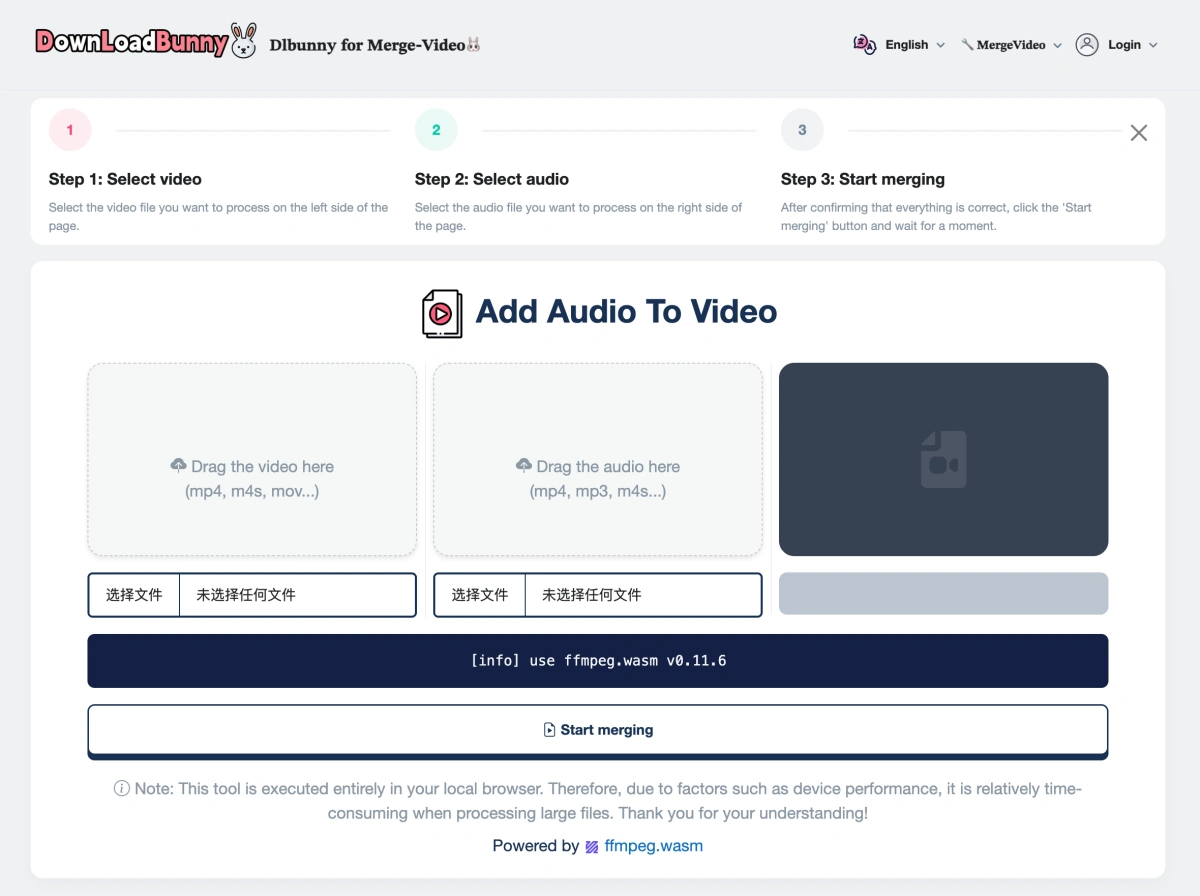
The tool features a clean and intuitive interface. Follow these 3 easy steps:
Step 1: Select Video
- Click the “Choose File” button in the left drop zone, or drag and drop your video file directly (supports
.mp4,.mov,.webm,.m4s, etc.). - Success: A green checkmark icon will appear once the file is loaded.
Step 2: Select Audio
- Click the “Choose File” button in the middle drop zone, or drag and drop your audio file (supports
.mp3,.aac,.ogg,.opus,.m4s, etc.). - Success: A green checkmark icon will appear once loaded.
Step 3: Start Merging & Download
- After confirming both files, click the
Start mergingbutton at the bottom. - The system log console will show real-time processing status (e.g.,
[info] run FS.readFile output.mp4). Wait a few moments for completion. - Real-time Preview: The video player on the right will automatically load the merged video. Play it directly to verify audio/video sync.
- One-Click Download: Click
Downloadbutton to save the new video to your device!
Pro Tips for the Best Experience
- Device Performance: All calculations are powered by your device’s local CPU. When handling large or high-definition videos, increased fan noise or slightly longer processing times are normal for WebAssembly workloads.
- Recommended Browsers: For optimal WebAssembly performance and speed, use the latest version of Google Chrome or Microsoft Edge.
Frequently Asked Questions (FAQ)
Q1: Will my video or audio files be uploaded to a server?
A: Absolutely not. DownloadBunny operates on ffmpeg.wasm technology. 100% of the media processing takes place inside your browser sandbox, with zero bytes transmitted to external servers.
Q2: Is this tool free? Do I need an account?
A: Completely free with no registration required. Open the webpage and use all features instantly.
Q3: What format is the merged video exported in?
A: By default, the output video is exported as a standard .MP4 file, making it fully compatible with iOS, Android, Windows, macOS, and all major social media platforms.